As we saw a little while ago, most web pages have an intrinsic document flow, based around the idea of block and inline elements. We’ve also learned about the CSS box model — content, padding, border, and margins — and about how to specify sizes and layout using pixels, relative units like ems and rems, and the viewport-based units vh and vw.
In this section, we’re going to learn some techniques we can use to break out of the document flow model and take much greater control of our page layouts.
Before we get into that, though, let’s have a quick refresh about viewports.
Viewports and Scrolling
When we use the word screen, we mean the entire physical display. A screen has a size, and a resolution. Size is physical: my laptop screen is 30 by 20 centimetres; my phone screen is 6 by 10 centimetres; the projector screen in a conference auditorium is 20 metres wide. The resolution tells us how many pixels that screen has - and with high-DPI displays, physical pixels aren’t the same as logical pixels. My iPhone has 750 by 1334 physical pixels, but if you ask JavaScript to print the screen width and height, it says it’s 375 x 667 - which is exactly half the physical resolution, because on my phone each logical pixel is actually a 2x2 block of physical pixels.
Next, there’s the window. On a desktop or laptop, this is the browser window, which you can move and resize - and that window might have a title bar, address bar, toolbar, bookmarks, tabs, developer tools, status bar… and, somewhere in the middle, the viewport.
The viewport is the bit which actually shows you the web page - or part of it, because the page is often bigger than the viewport. In computer graphics, you’ll sometimes hear this referred to as the canvas, but on the web, if we use the word canvas we usually mean an HTML <canvas> element, so the thing that scrolls around behind the viewport is usually just called the document.
One final thing to bear in mind is what happens when the user zooms the page — because there’s two different kinds of zoom to think about. Desktop browsers have a feature called page zoom: that’s the one you get by pressing Ctrl++, or holding Ctrl and rolling the mouse wheel. Page zoom makes everything on the page bigger — text, images, videos — but it usually doesn’t affect the viewport; the browser recalculates the page layout.
On mobile devices like smartphones, there’s a feature called pinch zoom, which enlarges the whole page but doesn’t affect the layout. Instead, you end up with two viewports - there’s the visual viewport, which is the bit that’s still on the screen, and the layout viewport, which is the one the browser uses to lay out the page.
Sometimes, they’re all the same. If you view a really short page on your mobile phone screen — short enough that it doesn’t scroll — then the screen, the window, the viewport and the document are all the same size, and things are very easy indeed. But as we learn about more complex layouts, it’s important to think about whether we’re arranging elements relative to the document or to the viewport.
The viewport meta tag
When smartphone browsers adapt a page layout for their screens, they’ll usually render the page as it would appear on a desktop device, and then zoom out until it fits on the screen. This can lead to very, very small text, and can cause layout problems.
You can change this behaviour by using a <meta> tag in the document <head>, to specify the viewport width, and the initial scale factor - how much the page should be zoomed when it first loads.
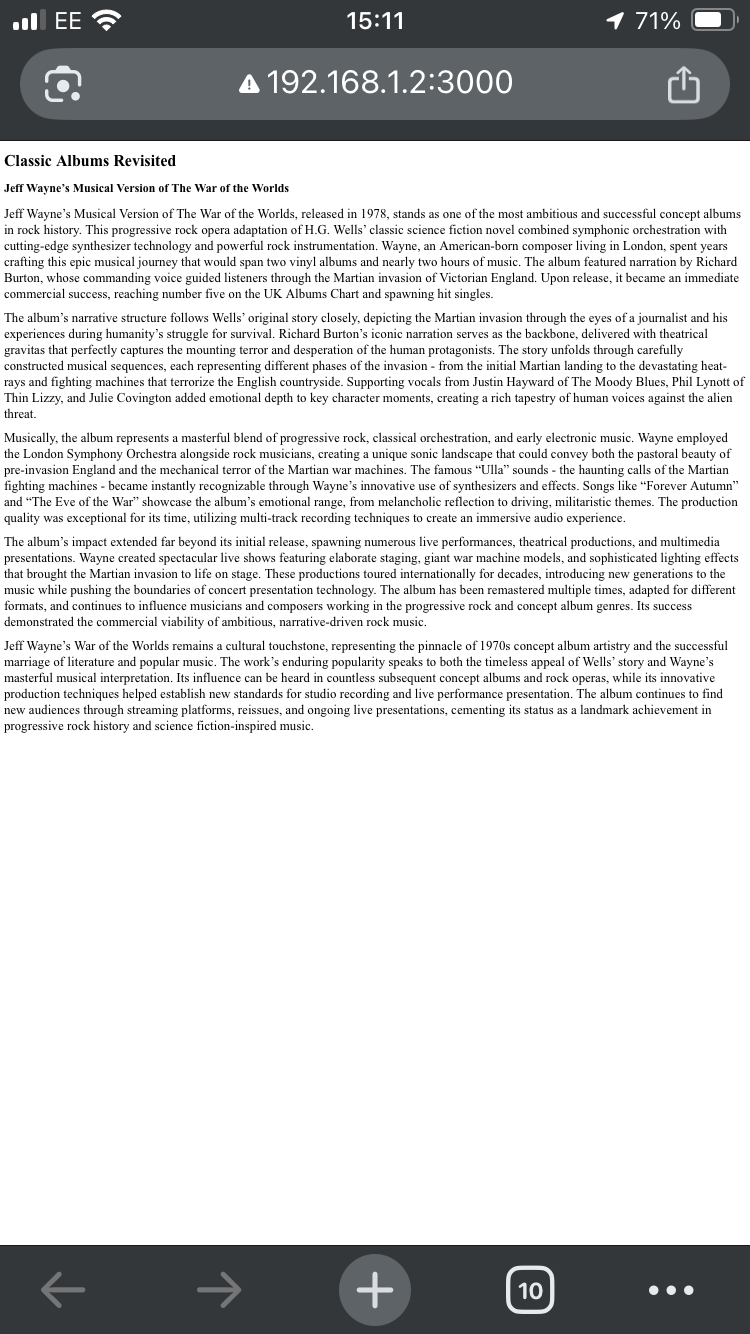
initial-scale: 0.1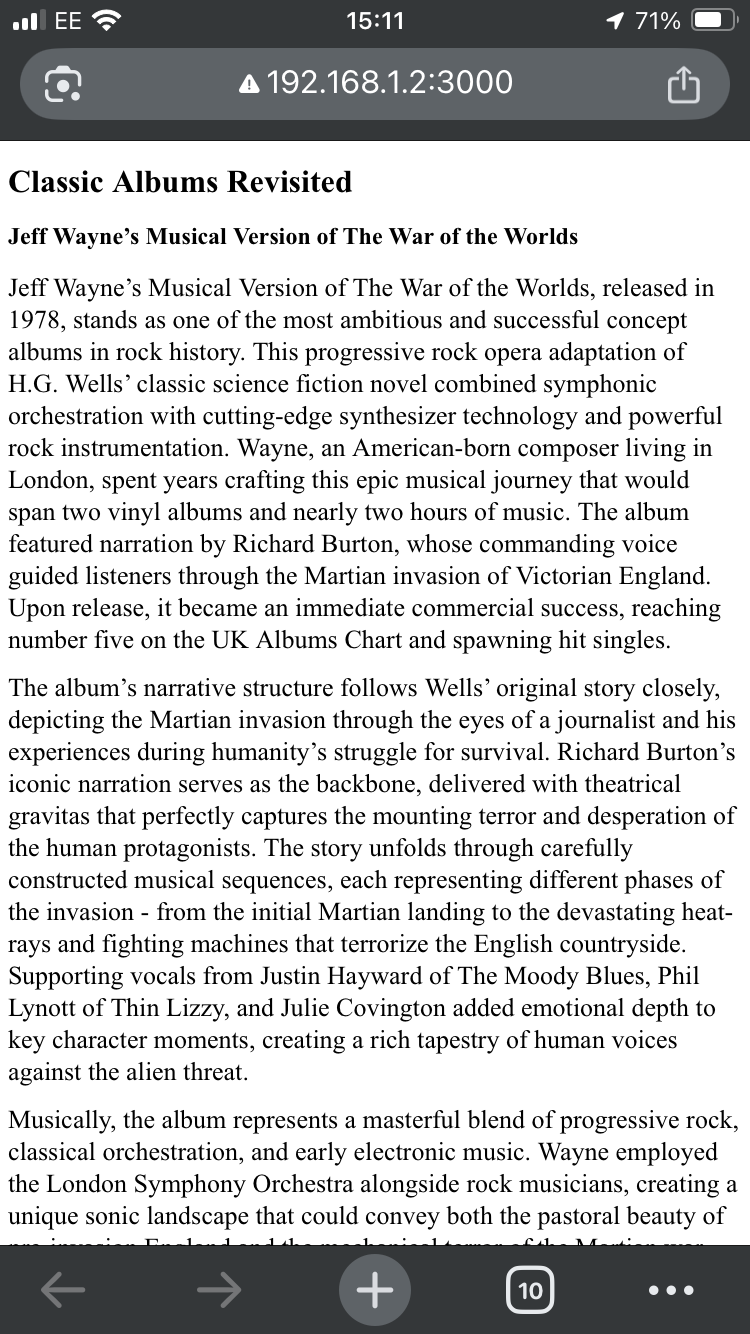
initial-scale: 0.5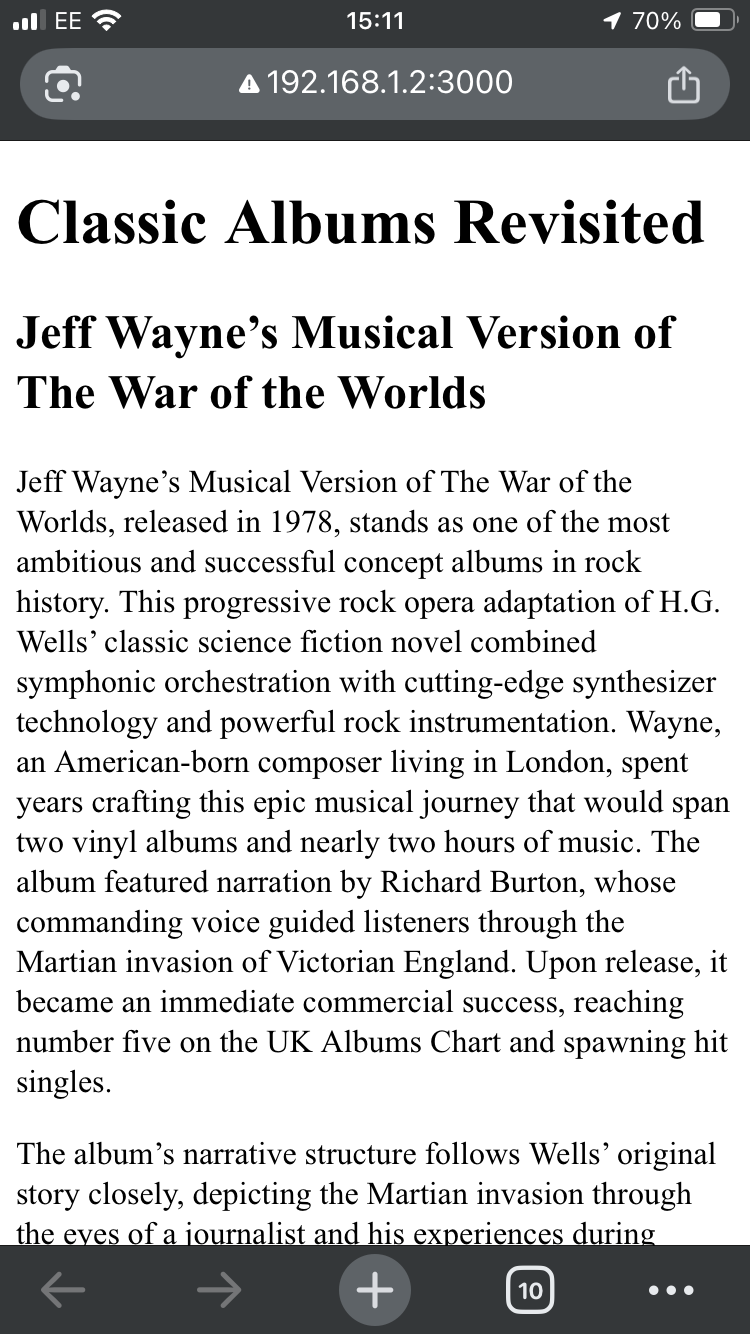
initial-scale: 1.0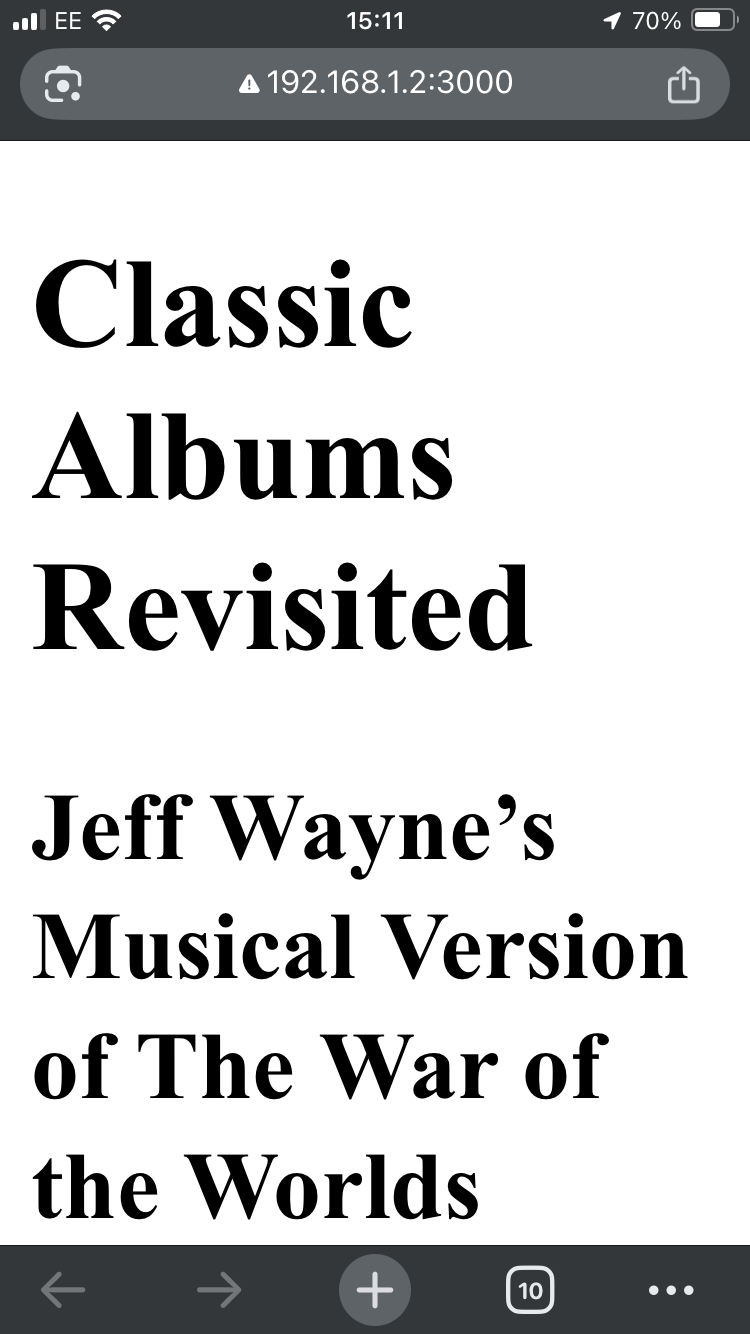
initial-scale: 2.0You can set the viewport width to a specific number of pixels, from 1 to 10000, but by far the most common use of the <meta name="viewport"> tag is using it to set the viewport width to the device-width:
<meta name="viewport" content="width=device-width; initial-scale=1.0" />
Responsive Width
Page width — and consequently, the length of each line of text — can have a huge impact on readability, so when you’re authoring a page that’s going to be read on everything from an iPhone SE to a 48” Samsung ultrawide high definition monitor, you really want to be able to adjust the page width dynamically based on the device. This technique — using styles that adapt to the device that’s displaying them — is known as responsive design, and we’ll be talking about it a lot throughout the rest of this course.
The simplest example is to fix the page width:
body { width: 720px; margin: 0 auto; }
but CSS gives us some useful functions we can use to create a layout which is responsive up to a point, but won’t become unusable on very large or very small devices. There’s min-width and max-width:
body {
  width: 60%;
  max-width: 960px;
  min-width: 420px;
}
Modern CSS also defines two general-purpose functions min and max, which take any number of arguments, including other functions, and return their minimum or maximum argument:
body { width: min(960px, 60%); }
body { width: max(420px, 60%); }
body { width: max(420px, min(960px, 60%)); }
But that last syntax is a little unwieldly, so CSS also provides a clamp() function:
body { width: clamp(420px, 60%, 960px); }
Open up this example in new window and try changing the window width to see how they behave:
<!DOCTYPE html>
<html lang="en">
<head>
	<title>Responsive Width</title>
	<meta name="viewport" content="width=device-width;initial-scale=1.0">
	<style>
		section {
			margin: 2em auto;
			background-color: silver;
			h2 { text-align: center; }
			padding: 1ex;
		}

		section#a {
			width: 720px;
		}

		section#b {
			width: 60%;
			max-width: 72ch;
		}

		section#c {
			width: 60%;
			min-width: 32ch;
		}

		section#d {
			width: min(72ch, 50%);
		}

		section#e {
			width: max(72ch, 50%);
		}

		section#f {
			width: clamp(30ch, 60%, 72ch);
		}
	</style>
</head>
<body>
	<section id="a">
		<h2><code>width: 720px;</code></h2>
		<p>This section has a fixed width of 720px. It won't adapt to different
			screen sizes and may cause horizontal scrolling on smaller devices. This
			section has a fixed width of 720px. It won't adapt to different screen
			sizes and may cause horizontal scrolling on smaller devices. This section
			has a fixed width of 720px. It won't adapt to different screen sizes and
			may cause horizontal scrolling on smaller devices. </p>
	</section>
	<section id="b">
		<h2><code>width: 60%; max-width: 72ch;</code>
		</h2>
		<p>This section uses 60% width but won't exceed 72 characters wide, making
			it readable on larger screens while still being responsive. This section
			uses 60% width but won't exceed 72 characters wide, making it readable on
			larger screens while still being responsive. This section uses 60% width
			but won't exceed 72 characters wide, making it readable on larger screens
			while still being responsive.</p>
	</section>
	<section id="c">
		<h2><code>width: 60%; min-width: 32ch;</code>
		</h2>
		<p>This section uses 60% width but maintains a minimum of 32 characters wide
			to ensure readability even on very narrow screens. This section uses 60%
			width but maintains a minimum of 32 characters wide to ensure readability
			even on very narrow screens. This section uses 60% width but maintains a
			minimum of 32 characters wide to ensure readability even on very narrow
			screens. This section uses 60% width but maintains a minimum of 32
			characters wide to ensure readability even on very narrow screens.</p>
	</section>
	<section id="d">
		<h2><code>width: min(72ch, 50%);</code></h2>
		<p>This section takes the smaller value between 72 characters and 50% of the
			viewport width, ensuring optimal reading length. This section takes the
			smaller value between 72 characters and 50% of the viewport width,
			ensuring optimal reading length. This section takes the smaller value
			between 72 characters and 50% of the viewport width, ensuring optimal
			reading length.</p>
	</section>
	<section id="e">
		<h2><code>width: max(72ch, 50%);</code></h2>
		<p>This section takes the larger value between 72 characters and 50% of the
			viewport width, maintaining a minimum size while allowing growth.</p>
	</section>
	<section id="f">
		<h2><code>width: clamp(30ch, 60%, 72ch);</code></h2>
		<p>This section uses clamp to set a flexible width between 30 and 72
			characters, with a preferred value of 60% of the viewport width.</p>
	</section>
</body>
</html>Using CSS Position
In most of the examples we’ve looked at so far, the browser decides where to place each element on the page. Inline elements go next to the previous element, block elements go underneath the previous element; if the page ends up too wide, elements will wrap onto the next line, and if the page ends up too tall, we get a vertical scrollbar.
This behaviour is known as static positioning, and it’s the default: every element in HTML has position: static unless we change it. Static layout works really well for articles, documents, blog posts, that kind of thing, but as we start incorporating more sophisticated navigation and interaction into our websites, we’re going to need more options when it comes to layout.
Positioning properties
CSS exposes six properties which affect the position and size of an element: top, bottom, left, right, width, and height - they’re all linear measurements, so they can be pixels, ems, rems, points, percentages, or any of the other units we met earlier. What these properties actually do depends on which positioning model we’ve applied to the element, so let’s meet them.
position: relative
We’ll start with relative positioning. This lets us move an element relative to its original position, hence the name. If we say top: 10px, it’ll move it down the page by ten pixels - remember, coordinates start at the top left and increase downwards and to the right.
	p { background: #0363; padding: 8px; }

	p#example {
		position: relative;
		top: 2rem;
		left: 200px;
	}
<p>I'm a paragraph.</p>
<p id="example">I'm also a paragraph, but I'm going places, baby!</p>
<p>I'm a paragraph.</p>You see that middle paragraph? The one that’s going places? It’s moved down and to the right — but also, because the paragraph width is still based on the width of the viewport, the content is now too wide for the container, so we end up with a horizontal scrollbar.
Relative positioning is useful if you’ve got an icon or a button that’s not quite in the right place and you just need to nudge it by a few pixels, but it’s mostly used because it has an incredibly useful side-effect we’ll learn about in a moment.
position: absolute
First, though, let’s meet absolute positioning. Using position: absolute, we can specify exactly where an element should be placed within its parent element:
	div {
		color: #fff;
		padding: 8px;
	}

	div#alpha {
		background-color: hsl(5, 90%, 30%);
		position: absolute;
		width: 60px;
		height: 60px;
		left: 40px;
		top: 40px;
	}

	div#beta {
		background-color: hsl(90, 90%, 30%);
		position: absolute;
		left: 40%;
		right: 40%;
		top: 40%;
		bottom: 40%;
	}

	div#gamma {
		background-color: hsl(220, 90%, 30%);
		position: absolute;
		left: 2rem;
		bottom: 2rem;
	}

	div#delta {
		background-color: hsl(280, 90%, 30%);
		position: absolute;
		bottom: 2rem;
		left: 80%;
		right: 2rem;
		height: 4rem;
	}
<p>Lorem ipsum dolor sit amet, consectetur adipiscing elit. Sed do eiusmod
	tempor incididunt ut labore et dolore magna aliqua. Ut enim ad minim veniam,
	quis nostrud exercitation ullamco laboris nisi ut aliquip ex ea commodo
	consequat. Duis aute irure dolor in reprehenderit in voluptate velit esse
	cillum dolore eu fugiat nulla pariatur. Excepteur sint occaecat cupidatat
	non proident, sunt in culpa qui officia deserunt mollit anim id est laborum.
</p>

<p>Sed ut perspiciatis unde omnis iste natus error sit voluptatem accusantium
	doloremque laudantium, totam rem aperiam, eaque ipsa quae ab illo inventore
	veritatis et quasi architecto beatae vitae dicta sunt explicabo. Nemo enim
	ipsam voluptatem quia voluptas sit aspernatur aut odit aut fugit, sed quia
	consequuntur magni dolores eos qui ratione voluptatem sequi nesciunt.</p>

<p>At vero eos et accusamus et iusto odio dignissimos ducimus qui blanditiis
	praesentium voluptatum deleniti atque corrupti quos dolores et quas
	molestias excepturi sint occaecati cupiditate non provident, similique sunt
	in culpa qui officia deserunt mollitia animi, id est laborum et dolorum
	fuga. Et harum quidem rerum facilis est et expedita distinctio.</p>


<div id="alpha">alpha</div>
<div id="beta">beta</div>
<div id="gamma">gamma</div>
<div id="delta">delta</div>Unlike relative positioned elements, absolute positioned elements don’t take up any space in the document flow. The browser doesn’t leave a gap where they used to be; it yanks them out of the flow, draws everything else, and then slaps them over the top — which means if you’re not careful, you can easily end up with text that’s unreadable because it’s hidden behind another element.
You can also create styles which don’t make any sense:
	div {
		position: absolute;
		background-color: #f909;
		width: 41%;
		left: 6%;
		right: 6%;
	}
<section>
	<div>A pessimist is sitting next to an optimist.<br>
		The pessimist sighs loudly.<br>
		“Things can’t get any worse,” he says.<br>
		“Sure they can!” says the optimist.
	</div>
</section>
<section lang="he" style="direction: rtl; position: relative;">
	<div>
		פסימיסט יושב ליד אופטימיסט.<br>
		הפסימיסט נאנח בקול רם.<br>
		"דברים לא יכולים להיות גרועים יותר," אמר הפסימיסט.<br>
		"בטח שהם יכולים!" אמר האופטימיסט.<br>
	</div>

</section>
There’s no way an element can be 6% left, 6% right and 41% wide, because percentages have to add up to 100 - so the browser has to ignore something. If top, height and bottom are all specified, bottom is ignored.
If left, right and width are all specified, then it depends on the reading order of the text; the English version of the joke is aligned left — and the right property is discarded — but the Hebrew version of the joke is aligned right, with the left property discarded, because Hebrew reads right-to-left.
In the example above, the absolute-positioned elements are all positioned relative to the document’s body… but if you create a parent element with position: relative, any absolute-positioned child elements will be positioned relative to that parent. That’s the superpower side-effect we talked about a moment ago; relative positioned elements create a new layout context.
<!DOCTYPE html>
<html lang="en">
<head>
<title>Relative and Absolute Position</title>
<style>
aside {
float: right;
margin-left: 1em;
position: relative;
width: 25%;
border: 1px solid #000;
padding: 30px;
box-sizing: border-box;
text-align: center;
span {
position: absolute;
font-size: 150%;
&.n {
top: 2px;
}
&.e {
right: 2px;
}
&.s {
bottom: 2px;
}
&.w {
left: 2px
}
}
</style>
</head>
<body>
<h1>Absolute and Relative Positioning</h1>
<aside>
<p>This <code><aside></code> element has
<code>position: relative</code>,
and the four emoji inside it are wrapped in <code><span></code>
elements with <code>position: absolute</code> so we can position them
relative to their parent container.</p>
<span class="n w">↖️</span>
<span class="n e">↗️</span>
<span class="s e">↘️</span>
<span class="s w">↙️</span>
</aside>
<p>Lorem ipsum dolor sit amet, consectetur adipiscing elit. Sed do eiusmod
tempor incididunt ut labore et dolore magna aliqua. Ut enim ad minim veniam,
quis nostrud exercitation ullamco laboris nisi ut aliquip ex ea commodo
consequat. Duis aute irure dolor in reprehenderit in voluptate velit esse
cillum dolore eu fugiat nulla pariatur.</p>
<p>Excepteur sint occaecat cupidatat non proident, sunt in culpa qui officia
deserunt mollit anim id est laborum. Sed ut perspiciatis unde omnis iste
natus error sit voluptatem accusantium doloremque laudantium, totam rem
aperiam, eaque ipsa quae ab illo inventore veritatis et quasi architecto
beatae vitae dicta sunt.</p>
<p>Nemo enim ipsam voluptatem quia voluptas sit aspernatur aut odit aut fugit,
sed quia consequuntur magni dolores eos qui ratione voluptatem sequi
nesciunt. Neque porro quisquam est, qui dolorem ipsum quia dolor sit amet,
consectetur, adipisci velit, sed quia non numquam eius modi tempora
incidunt.</p>
<p>At vero eos et accusamus et iusto odio dignissimos ducimus qui blanditiis
praesentium voluptatum deleniti atque corrupti quos dolores et quas
molestias excepturi sint occaecati cupiditate non provident, similique sunt
in culpa qui officia deserunt mollitia animi, id est laborum et dolorum
fuga.</p>
<p>Et harum quidem rerum facilis est et expedita distinctio. Nam libero
tempore, cum soluta nobis est eligendi optio cumque nihil impedit quo minus
id quod maxime placeat facere possimus, omnis voluptas assumenda est, omnis
dolor repellendus. Temporibus autem quibusdam et aut officiis debitis aut
rerum necessitatibus saepe eveniet.</p>
</body>
</html>And yes, the terminology here can get very confusing when we talk about absolute-positioned elements being positioned relative to relative-positioned elements.
position: fixed
Fixed positioning works like absolute positioning, but elements are positioned relative to the viewport, not the document — in other words, they won’t move when you scroll the page. Fantastic for headers, footers and navigation menus.
	body {
		padding: 20px 0;
		text-align: center;

		img {
			width: 50%;
			margin: 1em auto;
			display: block;
		}
	}

	nav {
		position: fixed;
		left: 0;
		right: 0;
		top: 0;
		padding: 8px;
		background: #036;

		a {
			color: #fff;
		}
	}

	footer {
		position: fixed;
		bottom: 0;
		font-size: x-small;
		background: #000;
		color: #fff;
		left: 0;
		right: 0;
		padding: 4px;
		text-align: right;
	}
<nav> <a href="#">Home</a> <a href="#">Guitars</a> <a href="#">Basses</a> <a
		href="#">Drums</a> <a href="#">Woodwind</a></nav>
<img src="./guitars/jeremy-allouche-YStboKiFPVw-unsplash.jpg">
Photo by <a href="https://unsplash.com/@jerroams">Jeremy Allouche</a> on
<a href="https://unsplash.com/photos/YStboKiFPVw">Unsplash</a>
<img src="./guitars/angad-singh-9POz8PXGWjM-unsplash.jpg">
Photo by <a href="https://unsplash.com/@singhangadin">Angad Singh</a> on <a
	href="https://unsplash.com/photos/9POz8PXGWjM">Unsplash</a>
<img src="./guitars/giancarlo-duarte-cTj8vbZeX44-unsplash.jpg">
Photo by <a href="https://unsplash.com/@giancarloduarte">Giancarlo Duarte</a>
on <a href="https://unsplash.com/photos/cTj8vbZeX44">Unsplash</a>
<img src="./guitars/martin-rajdl-Olg60_RTPc8-unsplash.jpg">
Photo by <a href="https://unsplash.com/@martinrajdl">Martin Rajdl</a> on <a
	href="https://unsplash.com/photos/Olg60_RTPc8">Unsplash</a>
<footer> Photographs all used under the Unsplash Licence</footer>position: sticky
Sticky is a relatively recent addition to CSS, and it’s a fantastic example of the kind of thing that used to mean writing quite a lot of complicated JavaScript but now CSS just does it with one rule. Which is sad news if you enjoy writing — and maintaining — lots of complicated JavaScript, but it’s fantastic news for the rest of us.
Sticky gives you an element that’ll stay visible for as long as its container is visible… it’s kinda hard to explain, so here’s an example:
	section {
		border: 2px solid #036;
		margin-bottom: 1em;

		h2 {
			margin: 0;
			background-color: #036;
			color: #fff;
			position: sticky;
			top: 0;
		}

		p {
			padding: 0.5em;
		}
	}
<section>
	<h2>AC/DC</h2>
	<p>AC/DC is an Australian rock band formed in Sydney in 1973 by brothers
		Malcolm and Angus Young. The band is known for their hard rock and heavy
		metal sound, characterized by powerful guitar riffs, thunderous drums, and
		distinctive vocals. They became one of the best-selling music artists
		worldwide, with albums like “Highway to Hell” and “Back in Black” becoming
		legendary in rock history.</p>
	<p>The band’s energetic live performances and iconic songs such as
		“Thunderstruck,” “You Shook Me All Night Long,” and “TNT” have made them a
		staple of rock music for decades. Despite lineup changes over the years,
		including the tragic loss of original lead singer Bon Scott in 1980, AC/DC
		has continued to tour and record, maintaining their status as one of the
		most influential rock bands of all time.</p>
</section>
<section>
	<h2>Bon Jovi</h2>
	<p>Bon Jovi is an American rock band formed in 1983 in Sayreville, New
		Jersey. The band achieved widespread commercial success in the 1980s and
		1990s with their arena rock sound and anthemic songs. Led by frontman Jon
		Bon Jovi, the band became known for hits like “Livin’ on a Prayer,” “You
		Give Love a Bad Name,” and “It’s My Life.”</p>
	<p>With over 130 million records sold worldwide, Bon Jovi has maintained
		their popularity across multiple decades. Their energetic live
		performances and Jon Bon Jovi’s charismatic stage presence have made them
		one of the most successful touring acts in rock history, continuing to
		fill stadiums and arenas around the world.</p>
</section>
<section>
	<h2>Counting Crows</h2>
	<p>Counting Crows is an American rock band formed in Berkeley, California in
		1991. The band gained mainstream success with their debut album “August
		and Everything After” in 1993, featuring the hit single “Mr. Jones.” Led
		by vocalist Adam Duritz, the band is known for their alternative rock
		sound and introspective lyrics.</p>
	<p>The band’s music often explores themes of love, loss, and personal
		reflection, with Duritz’s distinctive vocals and storytelling abilities at
		the forefront. Songs like “A Long December” and “Accidentally in Love”
		have become staples of 1990s alternative rock, and the band continues to
		tour and record new material for their dedicated fanbase.</p>
</section>
<section>
	<h2>Dire Straits</h2>
	<p>Dire Straits was a British rock band formed in London in 1977 by brothers
		Mark and David Knopfler. The band achieved international success with
		their distinctive sound that blended rock, blues, and country influences.
		Mark Knopfler’s fingerpicking guitar style and storytelling lyrics became
		the band’s signature elements.</p>
	<p>Their 1985 album “Brothers in Arms” became one of the best-selling albums
		of all time, featuring hits like “Money for Nothing” and “Walk of Life.”
		The band’s sophisticated musicianship and Mark Knopfler’s guitar prowess
		earned them critical acclaim and commercial success until they disbanded
		in 1995, leaving behind a legacy of timeless rock classics.</p>
</section>
<section>
	<h2>Eagles</h2>
	<p>The Eagles are an American rock band formed in Los Angeles in 1971. Known
		for their harmonious vocals and country-rock sound, the band became one of
		the most successful acts of the 1970s. With classic hits like “Hotel
		California,” “Take It Easy,” and “Desperado,” they defined the sound of
		West Coast rock.</p>
	<p>Their album “Hotel California” is considered one of the greatest albums
		in rock history, and their meticulous attention to vocal harmonies and
		songcraft has influenced countless musicians. Despite internal tensions
		and breakups, the Eagles have sold over 200 million records worldwide and
		were inducted into the Rock and Roll Hall of Fame in 1998.</p>
</section>
<section>
	<h2>Fleetwood Mac</h2>
	<p>Fleetwood Mac is a British-American rock band formed in London in 1967.
		Originally a blues band, they evolved into one of the most successful
		pop-rock acts of all time, particularly after Lindsey Buckingham and
		Stevie Nicks joined in 1975. Their album “Rumours” became one of the
		best-selling albums ever recorded.</p>
	<p>The band’s music is characterized by intricate harmonies, memorable
		melodies, and the distinctive voices of multiple lead singers. Songs like
		“Go Your Own Way,” “Dreams,” and “Don’t Stop” have become timeless
		classics. Despite numerous lineup changes and personal dramas within the
		band, Fleetwood Mac continues to be celebrated for their lasting impact on
		popular music.</p>
</section>It’s usually used for vertical scrolling, but you can use sticky horizontally as well:
	* {
		box-sizing: border-box;
	}

	body {
		width: 500vw;
		margin: 0;
		padding: 0;
		overflow-y: hidden;
	}

	section {
		width: 100vw;
		height: 100vh;
		float: left;
		position: relative;

		h1 {
			margin: 0;
			position: sticky;
			left: 0;
			height: 100%;
			display: inline-block;
			padding: 1em 0.5em;
			background-color: skyblue;
			border-left: 2px solid royalblue;
		}

		p {
			padding: 2.5rem 0 0 0;
			position: absolute;
			left: 50px;
			right: 10px;
			top: 0;
			bottom: 0;
		}
<section>
	<h1>A</h1>
	<p>Ambitious adventurers always attempt amazing achievements, avoiding awful
		accidents. Ancient artifacts attract archaeologists across Africa, Asia,
		America, and astonishing animals appear among autumn afternoons, awakening
		absolute awe. Artists arrange astounding abstractions, appealing audiences
		appreciate authentic artistry. Astronauts advance aerospace ambitions,
		aiming at astronomical adventures.</p>
</section>
<section>
	<h1>B</h1>
	<p>Beautiful butterflies begin blooming beside babbling brooks, bringing
		brightness before bustling business begins. Bold builders build brilliant
		bridges between busy boulevards, benefiting both bicycle beginners and
		brave backpackers. Bright blue balloons bounce beautifully beneath
		brilliant blue skies, broadcasting boundless bliss.</p>
</section>
<section>
	<h1>C</h1>
	<p>Curious cats climb carefully, catching colorful creatures crawling
		calmly. Creative children create countless colorful crafts, celebrating
		cheerful celebrations constantly. Cool cascading waterfalls create calming
		sounds, captivating countless contemplative visitors. Clever chefs combine
		complex culinary creations.</p>
</section>
<section>
	<h1>D</h1>
	<p>Daring dolphins dance delightfully during dawn, diving deep down beneath
		dark depths. Determined detectives discover dangerous secrets, dedicating
		days to detailed detective work. Delicious desserts delight diners daily,
		delivering divine dining experiences. Dynamic dancers demonstrate dramatic
		performances.</p>
</section>
<section>
	<h1>E</h1>
	<p>Energetic elephants explore exotic environments, encountering enormous
		eucalyptus trees everywhere. Elegant eagles effortlessly emerge from
		elevated elevations, executing extraordinary aerial exhibitions.
		Enthusiastic explorers embark on exciting expeditions, experiencing
		exceptional educational encounters. Expert engineers execute elaborate
		electrical experiments, establishing efficient energy systems.</p>
</section>Scrolling and Overflow
In plain old HTML, the only thing which ever scrolls is the viewport, but when we start giving elements specific widths and heights, it’s trivially easy to create a container that isn’t big enough for its content. In CSS, this is known as overflow, and we can handle it in a few different ways.
	div {
		width: 4em;
		height: 4em;
		border: 2px solid #000;
		float: left;
		margin-right: 1.8em;
		padding: 0.2em;
		font-size: 1.4rem;

		box-sizing: border-box;
		&#a {
			overflow: visible;
		}

		&#b {
			overflow: hidden;
		}

		&#c {
			overflow: scroll;
		}

		&#d {
			overflow: hidden;
			text-overflow: ellipsis;
		}
		&#e {
			overflow: hidden;
			text-overflow: "😥";
		}
	}
<div id="a">CSS<br>is<br>AWESOME</div>
<div id="b">CSS<br>is<br>AWESOME</div>
<div id="c">CSS<br>is<br>AWESOME</div>
<div id="d">CSS<br>is<br>AWESOME</div>
<div id="e">CSS<br>is<br>AWESOME</div>The last two examples there use the text-overflow property, but the second one — text-overflow: "😥"; — is a draft specification, that, at the time I’m writing this, August 2025, is only supported in Firefox.
You can specify horizontal and vertical overflow separately, using the overflow-x and overflow-y properties:
	img {
		width: 12em;
		height: 12em;
	}
	div {
		width: 8em;
		height: 8em;
		display: inline-block;
		border: 1px solid #000;
	}

	div#a {
		overflow: hidden;
	}

	div#b {
		overflow-x: hidden;
		overflow-y: scroll;
	}

	div#c {
		overflow-x: scroll;
		overflow-y: hidden;
	}

	div#d {
		overflow: scroll;
	}
<div id="a"><img src="cats/fr0ggy5-Eo_ncrYjvO4-unsplash.jpg"></div>
<div id="b"><img src="cats/fr0ggy5-Eo_ncrYjvO4-unsplash.jpg"></div>
<div id="c"><img src="cats/fr0ggy5-Eo_ncrYjvO4-unsplash.jpg"></div>
<div id="d"><img src="cats/fr0ggy5-Eo_ncrYjvO4-unsplash.jpg"></div>
<p>
<small>
Photo by <a href="https://unsplash.com/@fr0ggy5?utm_content=creditCopyText&utm_medium=referral&utm_source=unsplash">fr0ggy5</a> on <a href="https://unsplash.com/photos/a-close-up-of-a-cat-near-a-window-Eo_ncrYjvO4?utm_content=creditCopyText&utm_medium=referral&utm_source=unsplash">Unsplash</a>
</small>
</p>Review & Recap
In this section, we’ve learned about viewports, element positioning, overflow, and introduced several techniques we can use to create responsive CSS layouts.
- Start with static layouts. Most web pages start with a natural block/inline flow and the CSS box model. To create more complex layouts we need to break out of the default document flow.
- Screens, windows and viewports - and how high-DPI screens and browser zoom modes (page vs. pinch zoom) affect layouts.
- Using the viewport meta tag to control how your page scales on mobile, ensuring text remains readable and layouts look good on all devices.
- Creating responsive widths using CSS units,
min-width,max-width, and functions likemin()/max() - CSS Positioning Models:
static(default): elements follow the document flow.relative: nudge elements from their default position (and as a handy side-effect, create a new layout container we can use with absolute-positioned child elements)absolute: place elements anywhere, relative to their nearest positioned ancestor.fixed: anchor elements to the viewport for sticky headers/footers.sticky: elements stay visible as you scroll until their container moves out of view.
- Overflow, and how to control scrollbars and content visibility with
overflow,overflow-x,overflow-y, andtext-overflow.